How to manage presets in Workbench?
Applies to: Perfectly Clear Workbench v5 or higher.
Overview
In Workbench, the left panel has three levels:
- AI Models. These decide which scene and preset Workbench applies to each image.
- AI Scene Detection. These are scenes (the image categories) that an AI Model detects.
- Presets. These are the correction settings applied to a scene/image.
Presets are kept in preset groups:
- System preset groups come with Workbench and can't be edited.
- Custom preset groups, marked with a person icon, are groups you create. You can add, edit and delete presets in them.
How do I save my adjustments as a custom preset?
- Open an image and adjust the corrections until you're happy with the result.
- Click Save as new preset.
- Choose the custom preset group to save the preset in (or create a new custom group by typing a new group name).
- Enter a name for the preset.
- Optionally, add a description, such as what the preset does or when to use it.
- Optionally, for custom AI models choose the option to make the new preset the default for the current scene.
- Save. Workbench applies the new preset to the current image straight away.
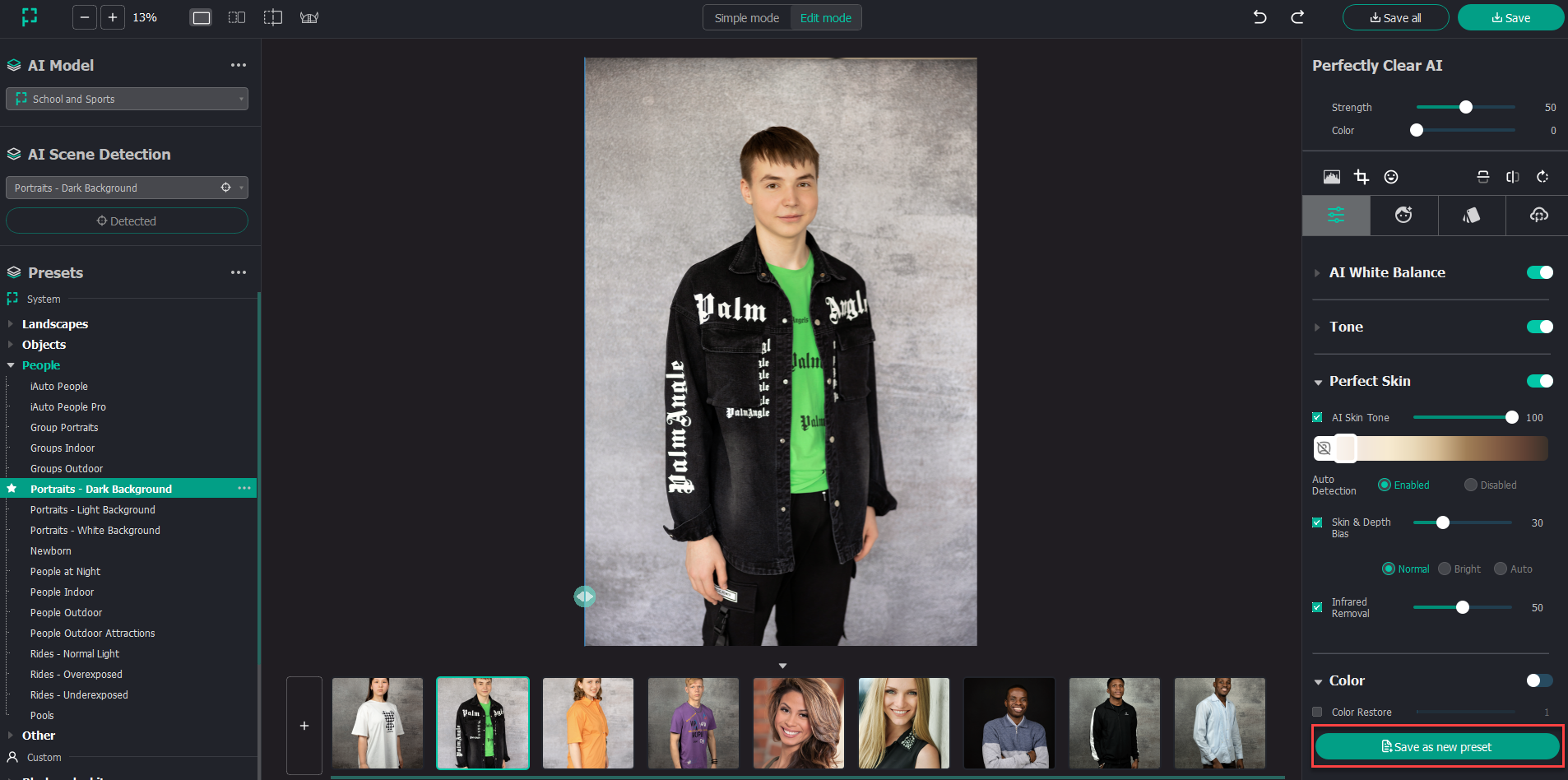
How do I make my preset apply automatically?
To have Workbench apply your preset automatically to a scene, set it as the default for that scene in a custom AI Model:
- Clone one of the Perfectly Clear AI Models. You can't edit the built-in models directly, so cloning gives you a custom copy that you can change.
- Give the cloned model a unique name. Each model name must be different.
- In the cloned model, choose the scene you want to change (‘AI Scene Detection’ dropdown).
- Find your preset and either:
- click the star icon next to it, or
- open the three-dot menu and choose Set as Default.
- From now on, Workbench applies your preset automatically whenever it detects that scene and the cloned model is active.
Tip: You can also set the default while saving, using the default option in the Save as new preset dialog. This option was added in version 5.0.3.
Can I edit a Perfectly Clear AI Model or System preset group?
No. Perfectly Clear AI Models and System preset groups are locked. To change one, clone the model, or save your presets into a custom preset group, and make your edits there.
How do I share presets or models with other users or computers?
Use Export to save your custom presets or AI Models to a file. Then use Import on the other machine.
Using presets in QuickServer
If Workbench and QuickServer run on the same computer, presets you create in Workbench appear in QuickServer automatically.
If they run on different computers, copy the preset files into the shared presets folder on the QuickServer computer:
- Mac:
~/Library/Application Support/Perfectly Clear/Perfectly Clear Shared/presets - Windows:
%appdata%\Perfectly Clear\Perfectly Clear Shared\presets
Caution: If you delete or rename a preset that a QuickServer channel uses, that channel becomes Invalid.
Using presets in Perfectly Clear Cloud and the Web API
First, export the AI Model or preset as a .preset file.
- Perfectly Clear Cloud: Open the Presets tab and click Add new preset, then select the
.presetfile. To apply it to a job, see How to Apply Custom Presets in Perfectly Clear Cloud. - Web API: Upload the
.presetfile through the presets endpoint. For the request format, see Uploading custom presets and thePOST /presets/API reference. - SDK:
.presetfiles load withPFC_ReadPreset(). To set individual parameters in code instead, use the "Export to SDK" method described in How to export custom AI Preset Groups or individual presets into the SDK, Web API, or Container.
How do I export AI Models, preset groups and individual presets in Workbench?
What can I export?
| What you export | What the file contains | When to use it |
|---|---|---|
| AI Model | A .preset file with scene detection, scenes and presets | Moving a complete automatic setup to QuickServer (on other computer), the SDK, the Web API, another computer, or EyeQ support |
| Preset group | The group and all the presets in it | Use this for sharing a set of related presets, such as several test versions. Cannot be used in SDK, CLI and webAPI, but if placed in the Perfectly Clear Shared folder, it can be used in QuickServer. |
| Individual preset | One preset as a .preset file | Sharing or backing up a single preset |
How do I export an AI Model?
- In the left panel, open the AI Models dropdown and select the model you want to export.
- Click the three-dot menu next to the model.
- Choose Export AI Model.
- Choose where to save the
.presetfile, then save it.
Notes:
- You can export both Perfectly Clear models (Universal, Pro, School & Sports, Attractions and Cruise Lines) and custom models.
- If you changed default presets, export the cloned (custom) model. That's the only kind of model where your defaults are saved.
- When someone imports your AI Model, Workbench also creates a preset group with a copy of its presets. That copy is a snapshot, so later changes to the model won't update it.
How do I export a preset group?
- In the Presets section, find the group you want to export.
- Click the three-dot menu next to the group name.
- Choose Export Group.
- Choose where to save the file, then save it.
Notes:
- You can export both System groups and custom groups (the ones with the person icon).
How do I export an individual preset?
- In the Presets section, select the preset you want to export.
- Click the three-dot menu next to the preset.
- Choose Export Preset.
- Choose where to save the
.presetfile, then save it.
Tip: Add a description to your preset before you export it (in Save as new preset, or view it later with See Info). This helps whoever imports it understand what it's for.
How do I import what I exported?
To import an AI Model:
- Click the three-dot menu in the AI Models section.
- Select Import AI Model.
- Browse to the AI Model file and select it.
To import a preset or preset group:
- Click the three-dot menu next to the ‘Presets’ section heading.
- Select Import Preset/Group.
- Browse to the file or files and open them.
- Choose the group to import into. This option was added in 5.1.0.
- Optionally, turn on Set the preset as default for current scene. This only works when a custom AI Model is selected.
Notes:
- Imported preset groups always land in the Custom presets section, in the group you choose or in a new custom group.
What happens to my presets when I upgrade from Workbench v4 to v5 or later?
When upgrading from Workbench V4 to V5, the following preset migration behavior applies:
- All existing presets from Workbench V4 will be migrated to Workbench V5.
- If presets from custom models are identical to System presets, they will be removed during migration. In these cases, the custom model will be linked to the corresponding System preset.
- Presets from custom models are migrated into the Custom Presets section and grouped under a preset group with the same name as the original custom model.
- The number of presets in these groups may be fewer than the number of scenes, since presets that match System presets are removed during migration.
- Legacy skin tone presets are automatically converted to the new 10-level skin tone preset system.
Still have questions?
Contact our team ↗